To publish AI content to GitHub, save the article as a Markdown file in your content folder with front matter that matches your site’s schema, commit it to a new branch, and open a pull request. A person reviews the diff, CI builds the site to catch malformed files, and merging the pull request triggers the deploy, so nothing ships until a person approves the merge.
This is a problem for anyone whose blog lives in a Git repository (Astro, Next.js, Hugo or SvelteKit) and who has a finished AI draft sitting in a document. That draft has to become a file the repo accepts, and the risk is one malformed file reaching production.
By the end, you can ship an article as a reviewed pull request: a build checks the file, and a person reads the diff before anything goes live.
Key Takeaways
- Front-matter field names come from each site’s own schema, so a copied template with a missing required key can fail the build.
- Give the publisher only Contents and Pull requests permissions (read and write), scoped to selected repositories, not your whole account.
- A required status check on a protected branch is what stops a malformed file from merging.
- A citation shows traceability, not correctness, so a person still reads each claim before merging.
How do you publish AI content to GitHub, step by step?
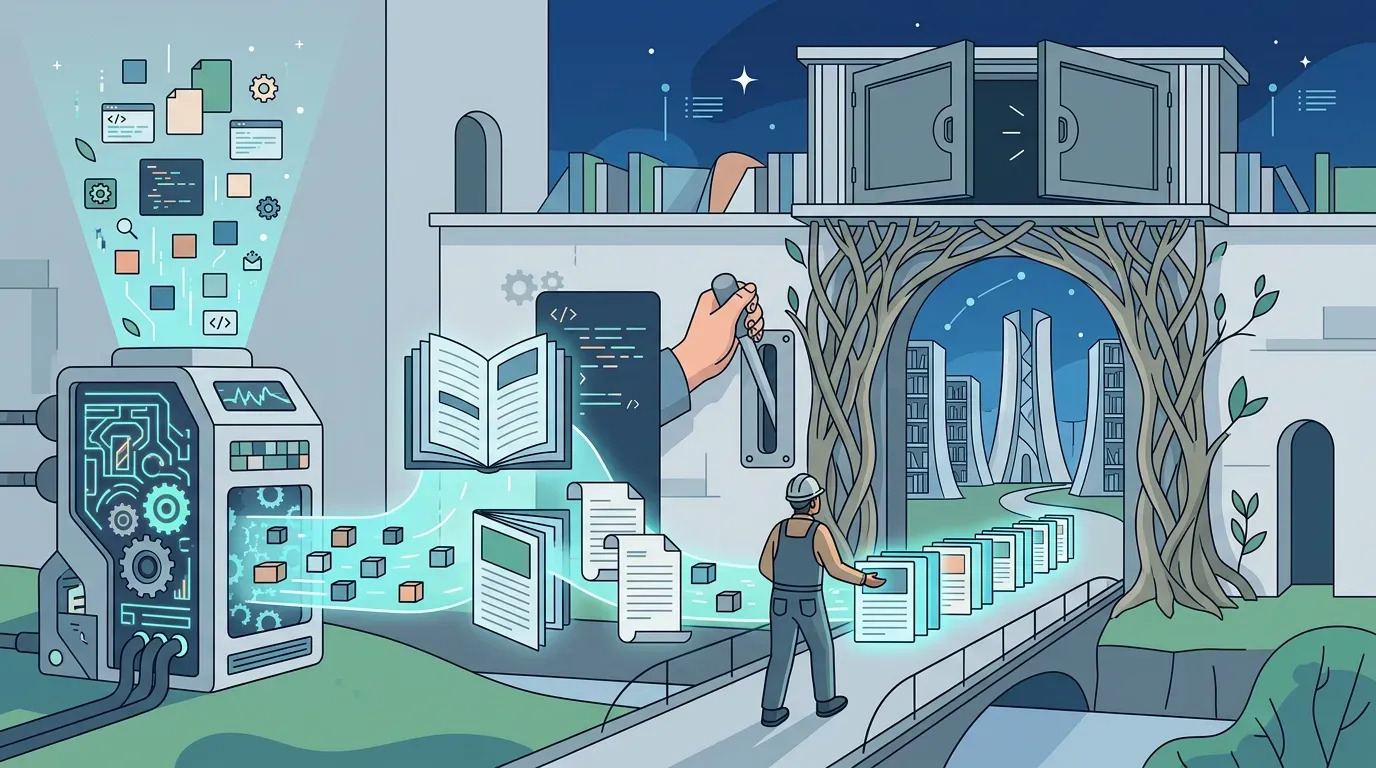
You publish AI content to GitHub by saving the draft as a Markdown file on a branch, opening a pull request, and letting your site’s CI build and deploy it after a person merges.
- Find the content folder your framework reads. Check your framework’s config for the collection or content directory. A file saved anywhere else never reaches the site.
- Save the article as a
.mdfile named by its slug. Use lowercase kebab-case, such asyour-slug.md. Check that no file with that slug exists, because a collision overwrites a post or breaks the build. - Add the front-matter block. The next section shows one. Leave the H1 out of the body, since the page prints the front-matter title.
- Create a branch. Never work on
main. - Commit the file. One article, one commit.
- Open a pull request. GitHub Docs on creating a pull request describes how to propose the changes on your branch for review.
- Have a person review and merge. Read the diff, then merge.
- Let the build and deploy run. The site generator builds the page in CI and publishes the live URL. Nobody converts Markdown by hand, and a failed build keeps the change out of production.
# Example path: it depends on your site's content folder
git switch -c post/your-slug
git add src/content/blog/your-slug.md
git commit -m "Add article: your-slug"
git push -u origin post/your-slug
A tool can make the same commit without a local clone. GitHub’s REST API reference for “Create or update file contents” says the endpoint “creates a new file or replaces an existing file in a repository.”
The request carries a path, a commit message, the file content and, optionally, a branch. The content must be Base64 encoded.
One PUT /repos/{owner}/{repo}/contents/{path} request to a named branch produces the same commit as the commands above. You then open the pull request from that branch.
What front matter does an AI-written article need?
An AI-written article needs front matter that matches your own site’s content schema, because the field names are not universal. Front matter is the metadata block at the top of a Markdown file, usually YAML between two lines of three dashes, that your static site generator reads to build the page.
The block below is an example only. Rename every key to match your schema before you use it.
---
title: "How to publish AI content to GitHub"
description: "Save the draft as Markdown, open a pull request, and let CI check the build before anyone merges."
date: 2025-01-15
slug: publish-ai-content-to-github
tags: ["publishing", "content workflow"]
draft: true
---
The names belong to your site, not to the AI tool. Your blog might call the date pubDate, require an author field, or want tags as a comma-separated string.
Each framework treats these fields differently:
- Astro: the Astro content collections docs say that if any file violates its collection schema, “Astro will provide a helpful error to let you know.” If your schema requires
dateand the file omits it, expect that error. - Next.js: the Next.js MDX guide states that “@next/mdx does not support frontmatter by default.” Your own code or a plugin may read these fields, depending on your setup.
- Hugo: Hugo’s front matter docs say front matter can be written in TOML, YAML, and JSON. Your theme’s templates decide which fields actually render.
A missing required key can fail the build or drop the page, depending on the framework and the code your site runs. That is why the build check belongs in CI, before anything merges.
Commit to main, pull request or manual export: how should AI content reach GitHub?
AI content should reach GitHub as a pull request that a person merges, and the other two routes fit narrower cases.
| Route | What it does | Who reviews | When it fits | Main risk |
|---|---|---|---|---|
| Direct commit to main | Puts the file on the production branch at once | No one before it lands | Nothing deploys from main without a gate, or the edit is low-risk | A bad file reaches production |
| Pull request | Opens a branch with a reviewable diff | A person, plus CI checks | New articles on a live blog | Review gets skipped if no rules enforce it |
| Manual export | You copy the file into the repo yourself | You, when you commit it | A one-off, or a repo no tool may touch | No audit trail unless you commit it |
A direct commit changes the production branch immediately. It fits only where a build gate sits between main and the live site, or for small edits such as a typo fix.
A pull request gives you a reviewable diff, a history, and an easy rollback: revert the merge. GitHub Docs on protected branches says you can set branch protection rules that set requirements for any pushes to the branch, such as passing status checks.
With that rule in place, a malformed file fails the build before anyone can merge it.
Manual export gives up the audit trail unless you commit the file yourself. It suits a single article or a repo you don’t want any tool to touch.
BirchSeek’s GitHub connector can commit or open a pull request. On the pull request route, the merge stays with a person.
How does a publisher authenticate to your repository, and with what permissions?
A publisher authenticates to your repository either as a GitHub App installed on that repository or with a personal access token, and for a shared blog the GitHub App is the safer choice.
A GitHub App is installed on the repositories you select and carries its own permissions. A personal access token acts as the person who created it, so its reach follows that person, not the blog.
Apply least privilege in three steps:
- Install on one repository. Choose only the blog repository, never all repositories in the organization.
- Grant only what the path needs. Creating a file and a commit needs Contents write access. Opening a pull request needs Pull requests write access. Confirm the exact names in GitHub’s repository permissions reference, and leave every other permission at no access.
- Protect the main branch. Require a pull request review and a passing build before merge, so even write access can’t skip a person.
The third step matters most. A permission says what the publisher can create; branch protection says what can reach production.
BirchSeek works as this kind of GitHub App: it commits Markdown or MDX to your repository as a commit or a pull request. The GitHub connector docs list the permissions it asks for, so compare that list with the rules above before you approve the install.
How do you deploy AI content from GitHub without breaking the build?
You deploy AI content from GitHub without breaking the build by building the site on every pull request, making that build a required check, and deploying only from the merged branch.
The deploy runs either from a GitHub Actions workflow you write or from your host’s own Git integration. Either way, the site must build on the pull request, so the check runs before merge. Here is a minimal pull request workflow:
name: build
on: pull_request
jobs:
  build:
    runs-on: ubuntu-latest
    steps:
      - uses: actions/checkout@v5
      - uses: actions/setup-node@v5
        with:
          node-version: lts/*
      - run: npm ci
      - run: npm run build
Check the version tags against the current READMEs for actions/checkout and actions/setup-node before you commit.
- Save the file as
.github/workflows/build.ymland open a pull request so the workflow runs once. - Require the check. Add the
buildjob as a required status check in your protected branch rules. Without this step, a red build can still be merged. - Add the deploy job. For GitHub Pages, add a second job that runs on push to
main, declaresneeds: build, and usesactions/upload-pages-artifactandactions/deploy-pages. A failed build then stops the deploy. GitHub’s page on custom workflows for Pages has the current Settings steps. - Check the sitemap after deploy for the new URL.
The build catches a missing front-matter key on its own when your framework validates front matter against a schema. A slug collision or a duplicate title usually builds fine, so add a small CI script that fails when a slug or title repeats.
Google Search Central describes a sitemap as “a file where you provide information about the pages, videos, and other files on your site, and the relationships between them.” Listing the new URL there helps Google find it.
What should a reviewer check before merging an AI-written article?
A reviewer should check six things before merging an AI-written article, covering whether the file builds, whether it follows the site’s format, and whether every claim traces to a source that says what the article says.
- Front matter is valid against the schema. Every required key is present and typed correctly. A missing key can fail the build.
- There is no H1 in the body. The page prints the front-matter title, so the body starts at
##. - There is no raw HTML where the site forbids it. Scan the diff for tags outside fenced code blocks.
- Internal and external links resolve. Open each one, or let a link checker in CI do it.
- Slug and title are unique. Search the content folder for the same slug or title, because a duplicate can clash with an existing page.
- Every factual claim has a source a reader can open. Open it and find the sentence that supports the claim. The source must say what the article says, not something nearby.
The source itself can be wrong, out of date or misread. The reviewer decides whether each claim stays.
Route the review to the right person. GitHub’s code owners docs say “You can use a CODEOWNERS file to define individuals or teams that are responsible for code in a repository.”
Point your content folder at your editor in that file. Then turn on required reviews in branch protection, so a pull request can’t merge without the editor’s approval.
What does Google say about publishing AI-generated content?
Google says AI-generated content isn’t against its guidelines by itself, and it judges pages by their quality and purpose rather than by how they were made.
Google Search Central’s guidance on AI content states: “Appropriate use of AI or automation is not against our guidelines.” The problem starts when AI is used to “generate content primarily to manipulate search rankings.”
Google’s spam policies cover this under scaled content abuse. The policy describes it as “many pages are generated for the primary purpose of manipulating Search rankings and not helping users,” and says it applies “no matter how it’s created.” A human content farm falls under the same rule as an AI one.
Google’s page on generative AI content is more specific. It says using these tools “to generate many pages without adding value for users may violate Google’s spam policy on scaled content abuse.”
The publishing route is where that line gets enforced. When an article reaches your repo as a pull request, a person reads the diff before anything ships, and each factual claim can link to a source a reader can open.
None of this guarantees indexing or rankings. It helps keep each page worth publishing.
Frequently asked questions
How do I publish AI content to GitHub?
Commit the Markdown file, with front matter that matches your schema, to a branch in the content folder and open a pull request. After review and a passing build, merging triggers the deploy; direct commits to main skip that review.
Can I commit AI-written articles straight to main?
You can if the account has write access to main. A pull request keeps a review point, and protected branches can require passing status checks before anything merges.
Can I use GitHub Pages for a blog with AI-written posts?
Yes, if the site builds from the repository. GitHub Docs covers build setups in “Using custom workflows with GitHub Pages”, and a merged post then redeploys like any other change.
Does Google penalize AI-generated content?
Not for using AI alone. Google Search Central says appropriate use of AI or automation isn’t against its guidelines, but its scaled content abuse policy covers many pages made mainly to manipulate rankings. Human review and sources a reader can open keep a post on the right side of that line.
Does the publishing tool need my personal access token?
Not necessarily. A GitHub App can be installed on only the repositories you pick, so the tool never holds a token tied to your whole account.
Next steps: from first pull request to a repeatable workflow
Build the workflow in this order, and you can publish AI content to GitHub with a person in control of every merge.
- Today: Find your content schema. Write one example front-matter block, then run a local build to confirm it passes.
- This week: Add a build check to pull requests. Make it a required status check on the protected branch, so a malformed file can’t merge.
- Then: Decide who reviews. Restrict publisher access to the blog repository only. Publish one article through a pull request and read the diff before you merge.
After that first merge, you have a repeatable path: file, branch, review, build, deploy.
Start setup of the BirchSeek GitHub connector. It follows the steps in the GitHub connector docs. In BirchSeek’s approval pipeline, you approve the topic, the draft and the publish step, so nothing reaches your repository without a person’s approval.
Sources
REST API endpoints for repository contents - GitHub Docs · Content collections | Astro Docs · How to use markdown and MDX in Next.js | Next.js Docs · Front matter | Hugo · About protected branches - GitHub Docs · GitHub connector setup | BirchSeek Docs · Google Search’s guidance about AI-generated content · Spam policies for Google web search. Every other source is linked where the article cites it.